
Decide what the client can do on the live link.
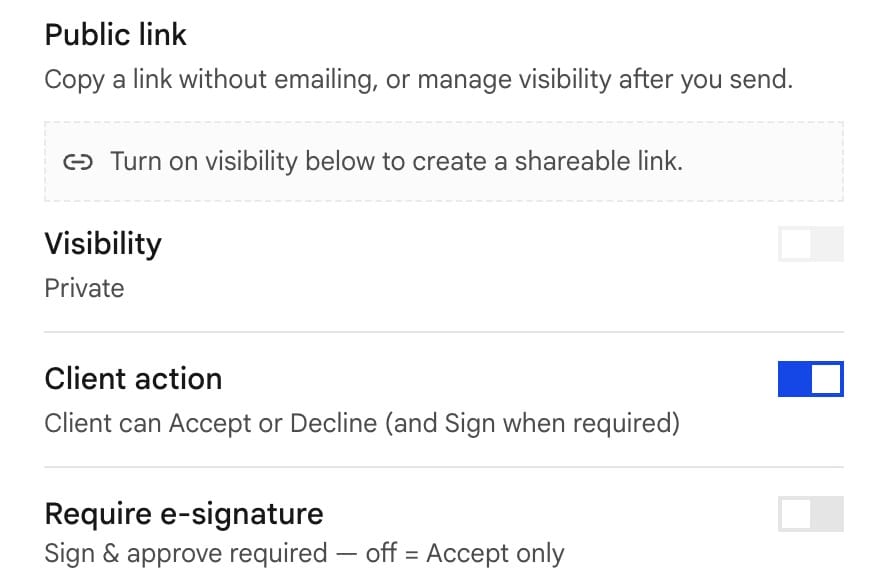
Decide means Accept, Decline, or Sign. View-only means they can read. No accept button. Acknowledgement receipts should be view-only.
Signature block

Add a Signature block: client line and company line.
Sign as sender before they open it so the PDF already has your name. Account → Title / position fills {{sender_title}}. Set it once.
Typed, drawn, or click-accept all leave evidence on the InProQu link.
Require e-signature
When a name on the page must be a real sign, turn Require e-signature on. Otherwise a click-accept may be enough.
Signer verification emails a one-time code (10 minutes) before they can accept. Use the Signer verification template.
Signing providers
Built-in signing is enough for many jobs. Connect Dropbox Sign when the deal needs their trail (DocuSign is coming soon). Setup, browser PDF, and the accept webhook: Signing providers.
The Signature block stays in the palette either way. While Dropbox Sign is live for that document, built-in lines are skipped.
Privacy
| Control | Use |
|---|---|
| Password | Extra gate on the public page |
| Expiration | Link dies after a date |
| Hide from workspace admins | Sensitive HR / legal: other admins cannot see the doc (when your workspace has this) |
| Mute alerts | Turn off alerts for this document |
Version history
Check history before you change a signed layout. After Share, the client’s link is frozen. An edit in the builder makes a new version. It does not change what they already signed.
Certificates
A signed accept can include a content hash (SHA-256) and sender / client emails on the signed alert. Keep that alert. It is your paper trail.