
Share creates a public URL. Email is optional.
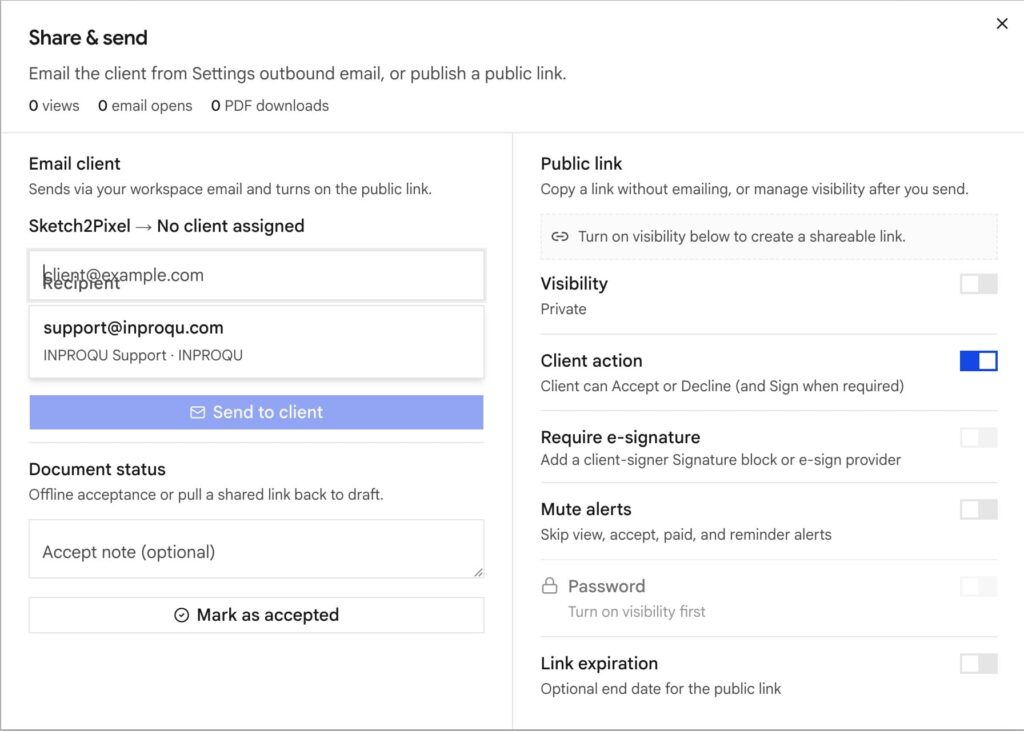
Open Share on the document. Turn sharing on. That creates /p/{token}.
Copy link vs send
| Path | Need |
|---|---|
| Copy link | Nothing. Paste it in your own mail or chat |
| Email from InProQu | Connected Gmail, Outlook, Zoho, or SMTP (SMTP is Pro+). Setup: Email |
You can skip the mailbox in setup and still share a document.
Recipient defaults to the attached client email. You can change it for that send.
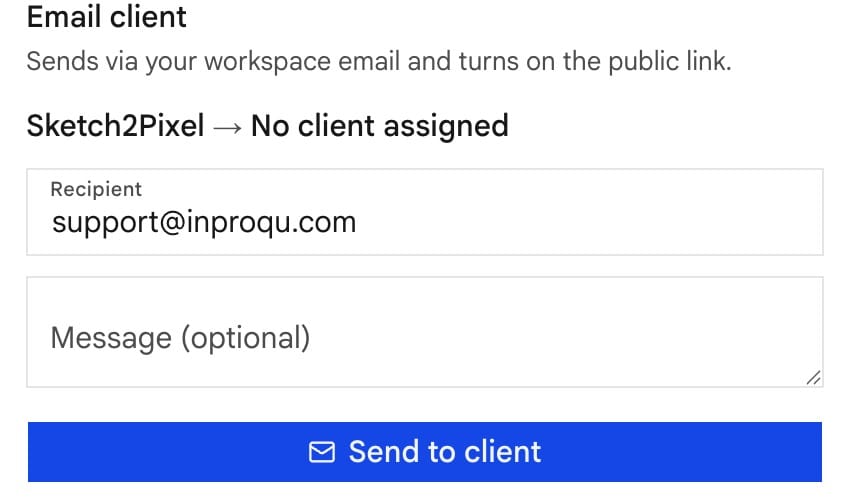
A custom note on this send overrides the template body once. The saved template stays for the next job. Subject still comes from the template unless the UI lets you edit it.
Optional controls
| Control | What it does |
|---|---|
| Password | Client must unlock the page |
| Link expiration | Link dies after the date |
| Mute alerts | No pings for this document |
| Decide vs view-only | Accept/decline/sign vs read-only |
| Require e-signature | Name on the page must be a real sign, not only a click |
| Signer verification | One-time code emailed before accept (uses the Signer verification template) |
Custom share hostname is Pro+ (branding / workspace settings).
After share
The send is frozen. Linked library sections no longer update on that public link. Edit in the builder creates a new version. Check history before you overwrite a signed layout.
Unshare or Return to draft turns public links off. Clients are not emailed automatically.
Email kind
The document title picks the send template:
- Proposal / quotation → Proposal sent
- Invoice → Invoice sent
- Acknowledgement → Acknowledgement sent
Follow-up from Share always uses Client follow-up.