
AI drafts a starting document. You still preview and share. AI does not send, accept, or take payment.
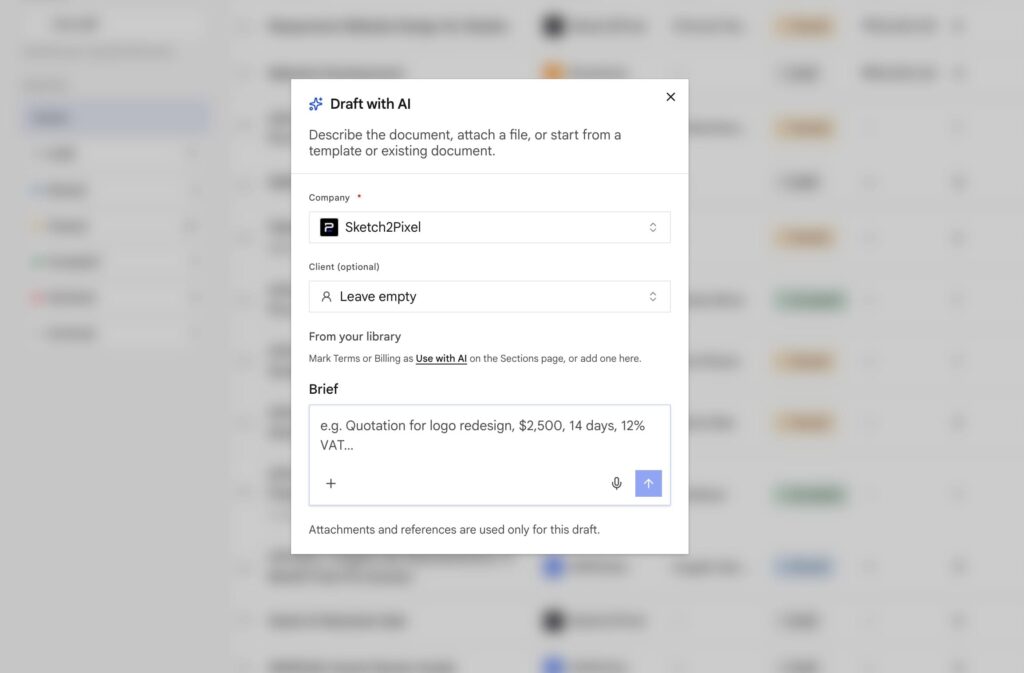
Connect ChatGPT, Claude, or Gemini first. Then New document → Draft with AI. Describe who it is for, what is in scope, currency, and whether this is a proposal, quote, invoice, or form.
A chat agent that should create a client or draft uses Incoming Webhooks, not this API key.
Attach a source
Supported: PDF, DOCX, CSV, images (JPEG, PNG, WebP, GIF).
Not supported: legacy .doc. Convert to DOCX first.
Long sources are paginated. Underlines become write-in lines. Names and rates should become Vars, not fake blanks.
Faithful / layout-only import keeps the source structure (legal forms, deeds) instead of rewriting it as a sales pitch. Ask for that when the file is a form you must match.
In-builder chat
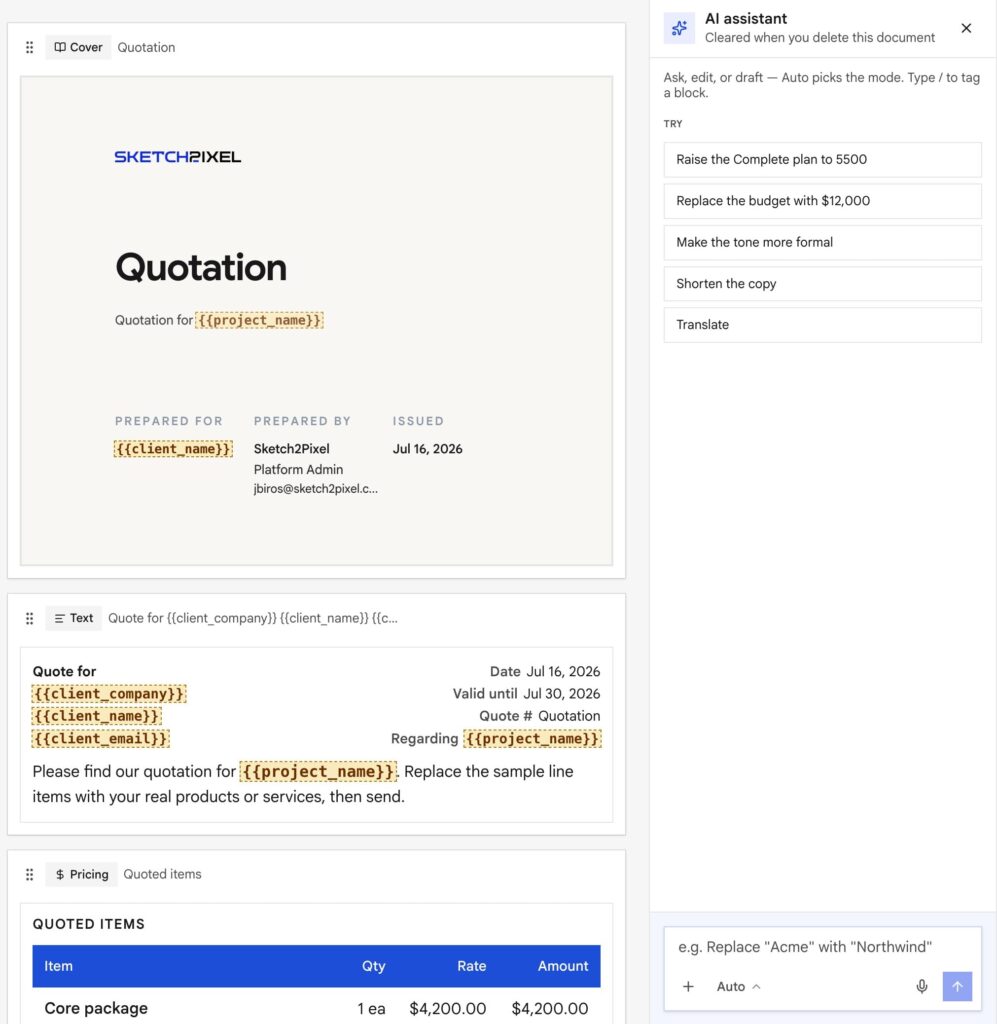
Rewrite a section, tighten terms, or localize a template. If you marked library sections Use with AI drafts, ask the assistant to use those.
A deed or affidavit should use separate blocks for headings, tables, and page breaks. It should not be one large text block.
Slash commands and references
In the builder AI box, you can attach a template, another document, or a block on this page without pasting the whole thing.
Type / at the start of the message, or tap + next to the box (Attach files / Select document / Templates).
| Type this | What it does |
|---|---|
/ | Opens the command list |
/template | Pick a workspace or catalog template as the reference. Short forms: /temp, /tpl. Keep typing to filter, e.g. /template quote |
/document | Pick another document in this workspace to copy or adapt. Short forms: /doc, /docs |
After you pick one, a chip shows above the box (Template · name, or Document · name). Send with no extra notes to copy it in. Add a sentence if you want it adapted (“same layout, this client, PHP”). You cannot pick the document you are already editing. Premium catalog themes you have not purchased will not attach.
To point at a block on this document, type / in the middle of a sentence (not as /template or /document). The picker is Insert block reference. Choose Pricing, Scope, Plan picker, and so on — it becomes a chip in the prompt. Then you can say “rewrite «Pricing»” or “move «Plan picker» below «Scope»”. Backspace deletes the whole chip.
+ Icon is also how you attach PDF / Word / CSV / images.
Rules the assistant should follow (and you should check)
- In an AI-made draft, use real Vars (
{{client_name}},{{project_total}}) instead of made-up{{line}}fields. - Never trust invented bank account digits or file / image / video URLs.
project_totalis the pre-tax sum of the pricing lines. It is not the grand total shown on the document.- Billing schedule should match the deposit split in Terms. Pricing stays the full fee.
- No thank-you fluff openers. Delete anything that does not sound like you.
- There is no
{{currency_symbol}}.
Paste a screenshot from your clipboard
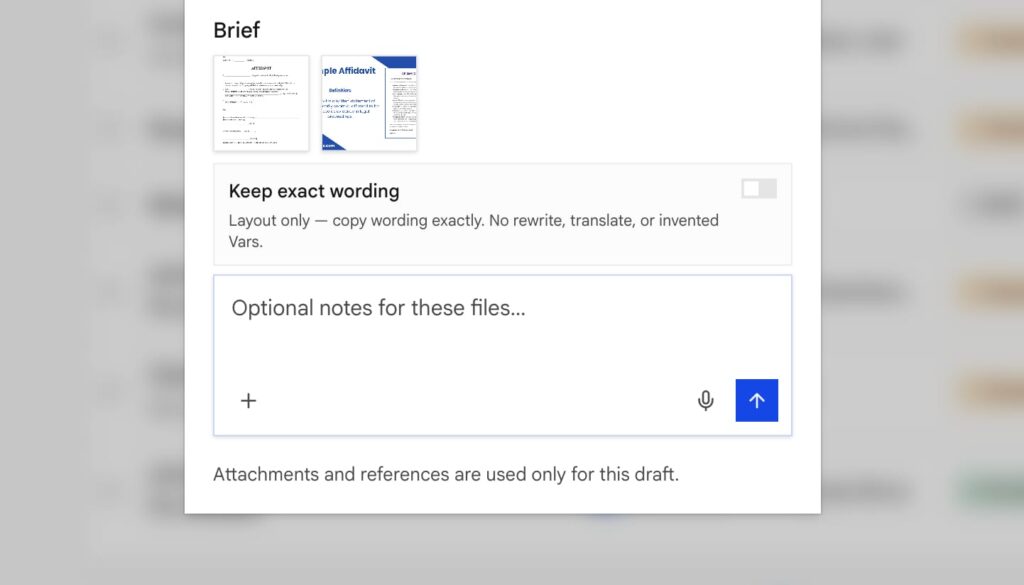
Copy a screenshot or image, click the chat message box, and paste it with Ctrl+V on Windows or Command+V on Mac. The image is attached to your message so the assistant can use it as a visual reference.
Add a short instruction explaining what to look at or change—for example, “Use the pricing shown in this screenshot” or “Match this section layout.” Check that the correct image is attached before you send the message, and avoid pasting screenshots that contain passwords or other sensitive information.
Knowledge (Business+)
Local files, Knowledge Base or file-library links, and a product SKU list can give AI drafts trusted facts. Attachments can use PDFs from the library. This is a plan feature and is not on Pro by default.
Human pass
Check numbers. Confirm account details came from you. Preview Website and Document. Then Share.