
A company is a brand profile. One workspace can have several (plan cap). Each document picks one company.
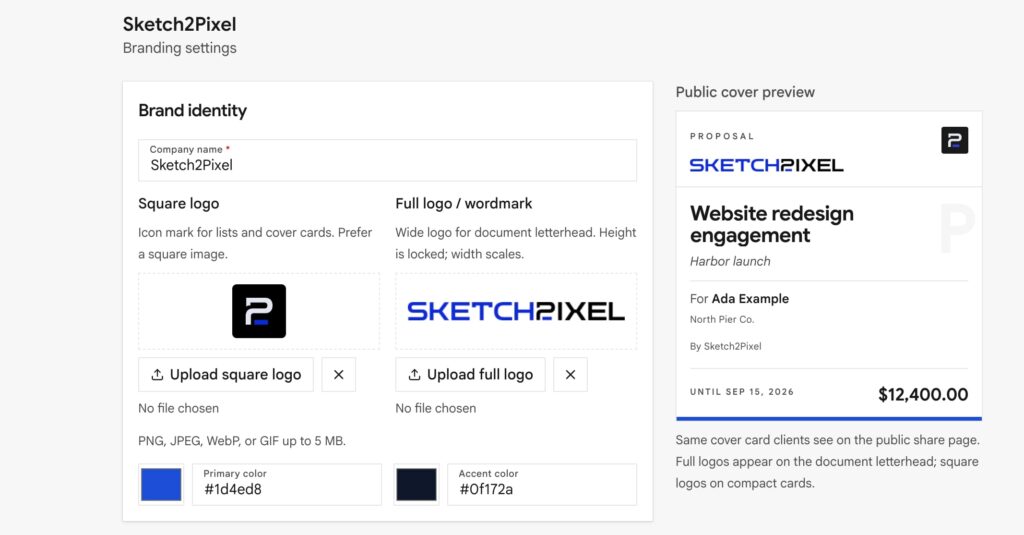
Companies → open the company → Branding settings is the full editor. Setup is only a short form.
Basics
- Company name, primary and accent colors
- Contact email, phone, website, address → variables
- Square logo: lists, cover cards, small marks
- Full / wordmark: letterhead and paper
Clear PNG or WebP on a clean background works best.
Letterhead styles
Letterhead is the header and footer on body paper pages. Cover pages fill the whole page and do not use the letterhead band.
Turn Show letterhead on for new documents (company or Settings → Documents). You can still kill it on one deed.
| Style | Look |
|---|---|
| Classic | Color stripe, logo, and contacts in the header |
| Minimal | Logo only: a simpler header and footer |
| Contacts in footer | Logo up top; contacts near the footer |
| Custom images | Your own full-width header/footer art: no auto logo/contact text |
Custom images
The path people miss.
- About 2480px wide is ideal (A4 @ 300dpi); at least 800px
- Header usually ~30mm tall (~354px); max ~60mm
- Footer usually ~17mm (~200px); max ~34mm: leave empty if you do not need one
- PNG, JPEG, WebP, or GIF
Tip: Custom header/footer images are the quickest way to match stationery. Check Preview → Document before you send.
Workspace look (Business)
The sidebar name, logo, icon, and colors, plus a custom Support page, are Business cloud features. Your document brand, which the client sees in the PDF, is on every plan.
Custom share domain (Pro+)
Public links can use your hostname instead of the default app host. Set this in branding / workspace settings when your plan includes it.