
InProQu does not hold funds. You bring your own keys (BYOK).
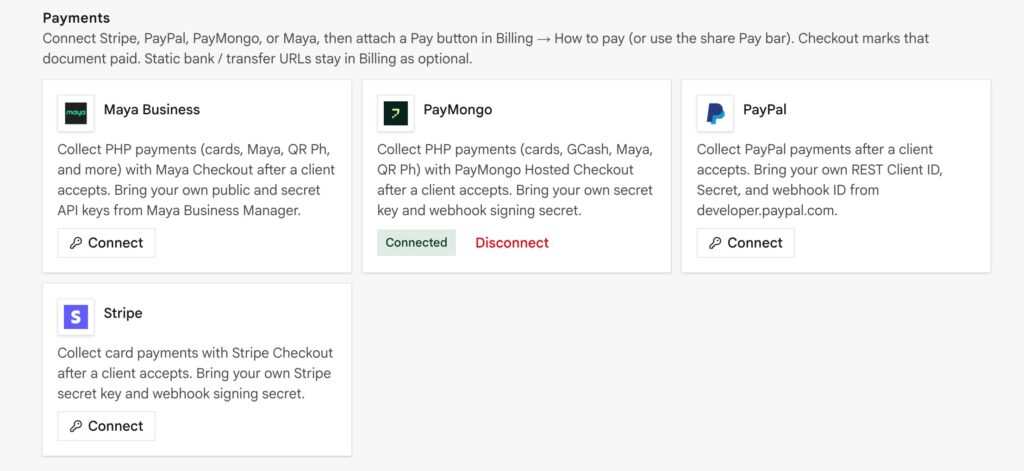
Integrations → connect Stripe, PayPal, PayMongo, or Maya Business. Then attach that provider on the document’s How to pay methods.
What connecting does
- Live Pay buttons on the public share page
- Partial payments update remaining balance
- Paid in full turns live checkout off
- Optional auto-ack (Settings → Documents) can draft an acknowledgement when paid
What connecting does not do
- It does not replace bank-transfer methods
- It does not send money through InProQu
- A static “Payment link” field is optional: connected checkout does not need a pasted URL
Mark paid by hand
If they wired you, you can mark the document paid / partial in the product. Manual methods stay clickable. Convert to acknowledgement when you are ready (total must be greater than zero).
Stripe (typical setup)
- Copy the Stripe Secret key.
- In Stripe, add a webhook to
{app}/api/webhooks/stripe/{workspaceId}(the ID is on the Integrations card). Copy the Signing secret. - Connect in InProQu. Attach Stripe on How to pay (or use the share-page Pay bar).
- Clients pay this document’s total. Accept is not required. Stripe marks the doc PAID.
PayPal, PayMongo, and Maya follow the same idea: your keys, your webhook URL, attach the method on the document. Full field notes live on each Integrations card.
Currency
The document currency should match what the processor can charge. Workspace Settings → Documents holds the default currency and the allowed currency list.