
Use the library for work you repeat, so you do not have to copy and paste between jobs.

Templates start the whole document. Sections drop reusable blocks into any job.
Templates
Save a finished layout as a template (cover through signature). Next proposal is not a blank page.
- Show variables on a template preview before you clone it.
- Shared workspace templates are Team+. Copy the template ID (key icon) for incoming webhooks / WordPress forms. Visitors cannot pass a template ID in a public field.
- Catalog / marketplace themes may be an add-on on self-serve plans; included on some Business / on-prem licenses.
Sections
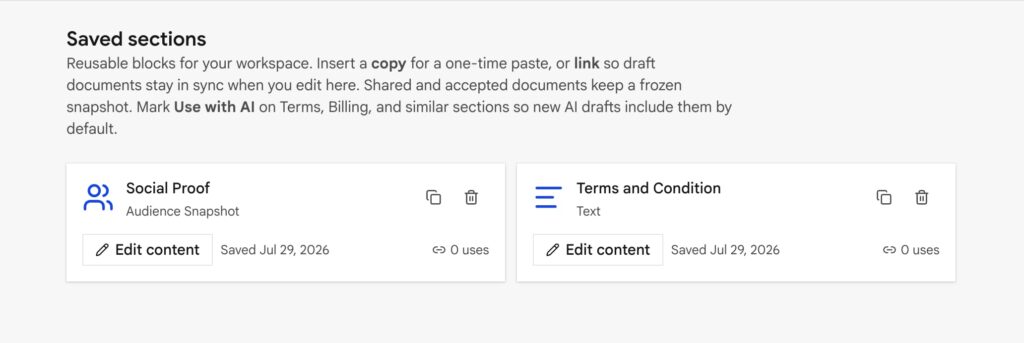
Smaller than a template: Terms, billing, a case study.
- Drop a section into any document.
- Mark Use with AI drafts so the assistant pulls your legal, not generic filler.
- In a draft, a linked library section can still update.
- After you share, that send is frozen so the client’s link does not change under them.
Media
| Source | How |
|---|---|
| Upload | Image block, cover, landscape |
| Stock | Pexels / Pixabay when connected under Integrations |
| Cloud Files | Browse Dropbox / OneDrive / pCloud, or paste any URL with no connection |
| Video | Paste a YouTube or Vimeo URL: connect is optional |
| Knowledge library | Attach KB PDFs (Business+) |
Integrations unlock browse pickers. Paste URL always works for video and cloud files. Setup: Media · Storage.
Catalog (Business+)
Pricing and Plan picker can pull From catalog instead of retyping SKUs. Knowledge also grounds AI drafts when you upload local docs or connect a KB.
Logo wall, related work, audience snapshot
Pitch-deck blocks. They stay in the palette on every plan; fill them with your work, not invented URLs.